
Plays from YouTube, which may set its own cookies.
Video: “Account Hacked?! 7 Pro Tips To Secure Your Social Media Accounts!” by Shannon Morse on YouTube, uploaded 2023-10-27. Independent creator — not made by Who Block Me or the platform. Watch on YouTube
Verified video tutorialPrivacy and Security · Beginner · About 6 min read · Last reviewed 2026-10-10
What you'll learn
- Use a unique password for each account
- Turn on two-step verification
- Check active sessions
- Remove unknown connected apps
- Ignore "who blocked me" tools that want your password
- Review your own privacy settings
How it works
Apps that promise to reveal exactly who blocked you are a common way to steal passwords. Securing your accounts matters more than any block check.
The video shows one creator's approach. Where it suggests a sign "confirms" a block, read the limitations below — most signs have other explanations.
Before you start
- Access to your social accounts and email
Step by step
Use a unique password for each account
A password manager makes this easy. Never reuse your email password.
Turn on two-step verification
Use an authenticator app where possible; it is safer than text messages.
Check active sessions
Most platforms list devices signed in to your account. Sign out of any you don't recognise.
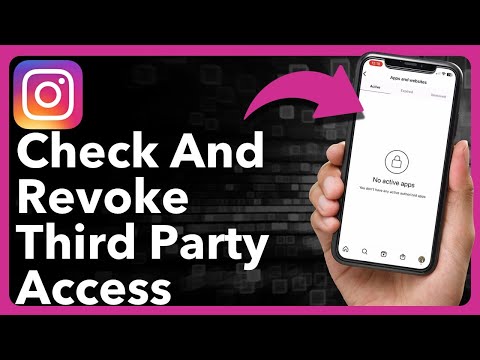
Remove unknown connected apps
Revoke anything you didn't add or no longer use.
Ignore "who blocked me" tools that want your password
No legitimate service needs it. Official connections always happen on the platform's own page.
Review your own privacy settings
Decide who can see your photo, last seen and posts — the same settings others use, which is why they can look like a block.
Important
- If you already entered your password into an unofficial tool, change it now and turn on two-step verification.
Common mistakes and troubleshooting
- I'm locked out after turning on 2FA
- Use the backup codes the platform gave you, or its official account-recovery page.
What this does not prove
- The video gives general security advice from an independent creator; follow each platform's official help pages for exact menus.
Frequently asked questions
Will Who Block Me ever ask for my password?
Never. We will also never ask for login codes or cookies.